 Yuzudesk
How-to guides / Add a brand deal
How to add a brand deal
Goal: get a new brand deal into your Pipeline so Yuzudesk can track it from first pitch to paid.
Steps
-
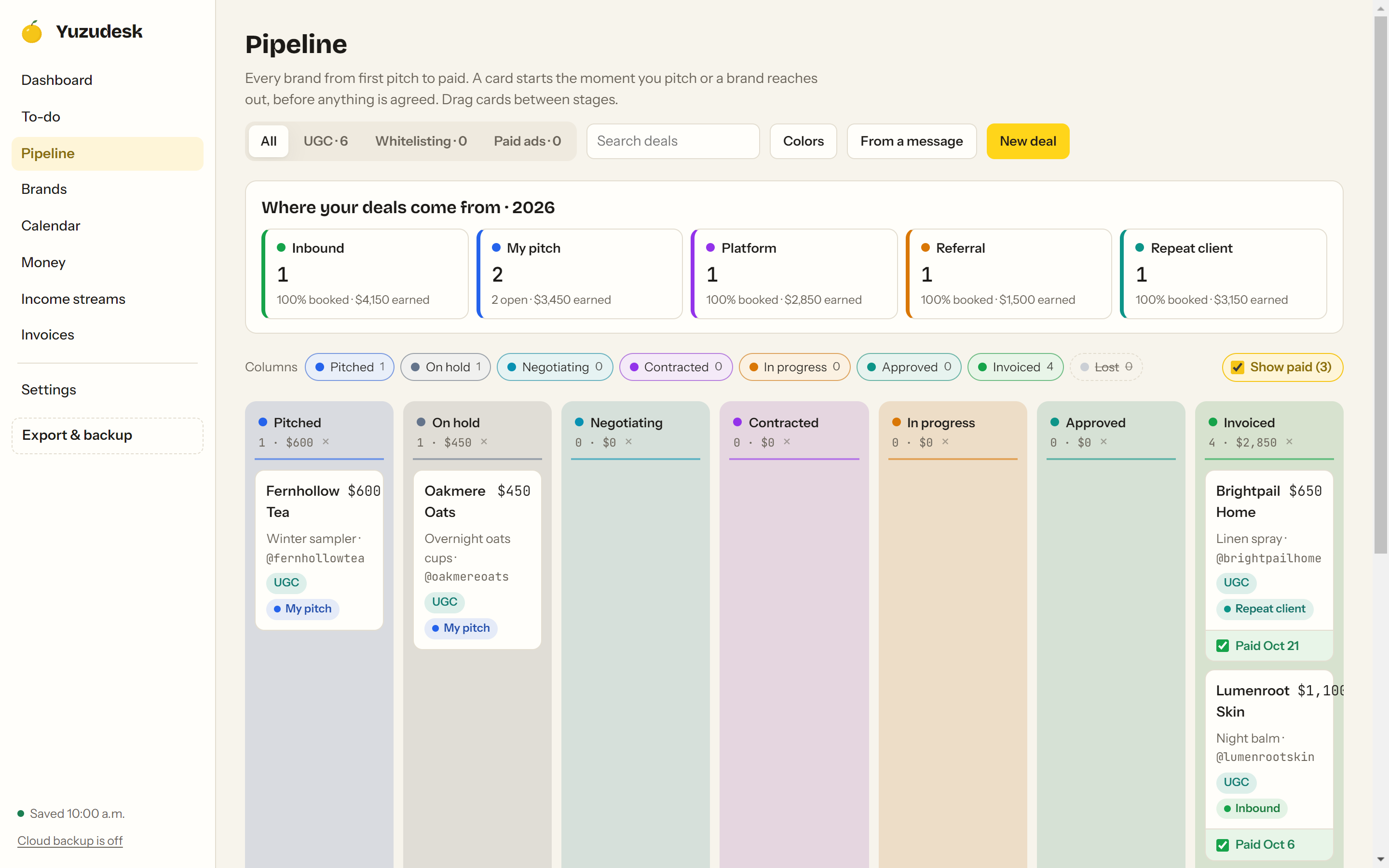
Click Pipeline in the sidebar, then click New deal at the top right. (You'll also find New deal on the Brands page.)
-
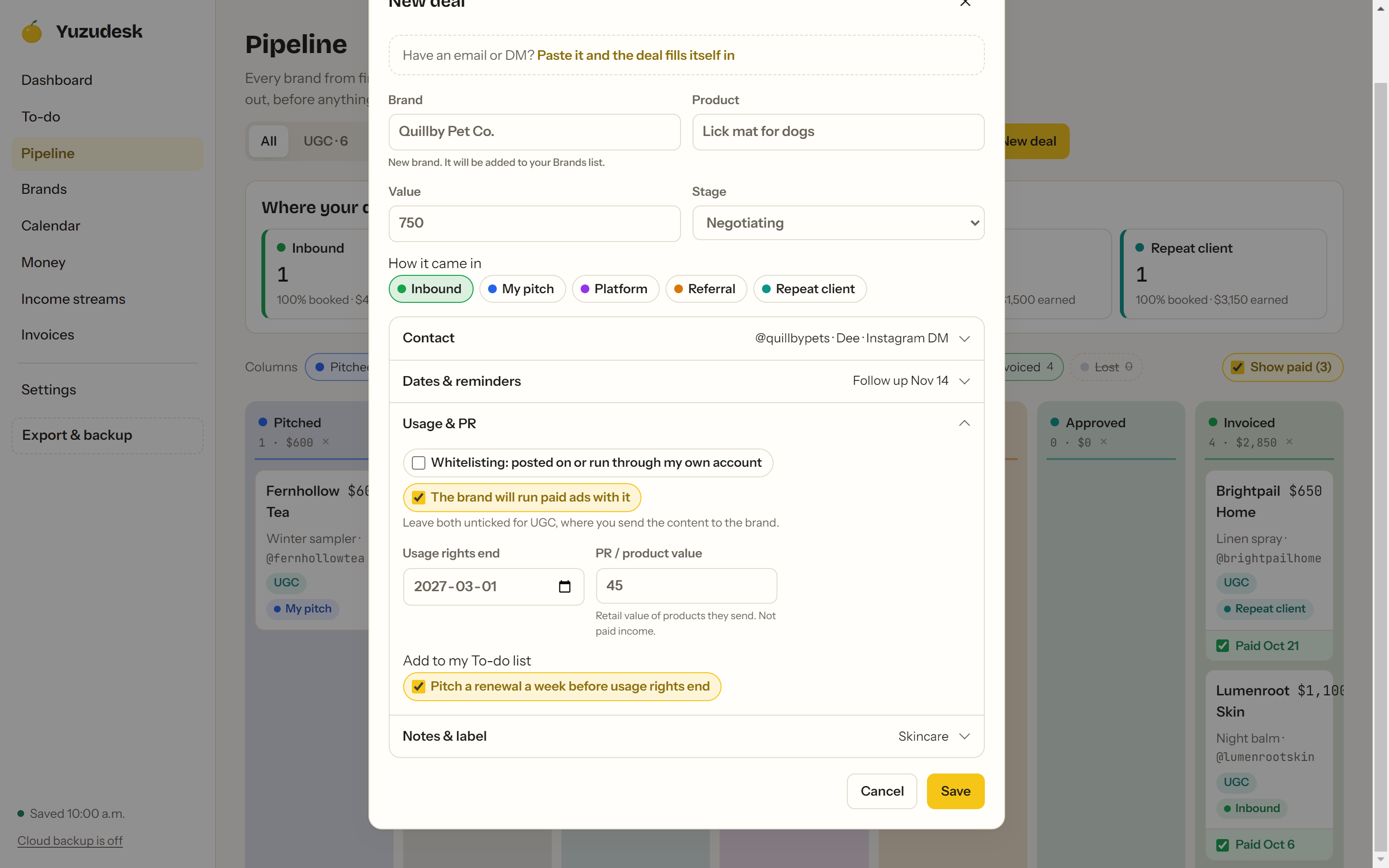
Fill in the top of the form:
- Brand: who it's with. Start typing and Yuzudesk suggests brands you already have.
- Product: what you're making content for.
- Value: what the deal is worth. An estimate is fine; you can change it later.
- Stage: where the deal is now. Pick from Pitched, On hold, Negotiating, Contracted, In progress, Approved, Invoiced or Lost.
-
Under How it came in, pick one: Inbound (the brand reached out), My pitch (you reached out first), Platform, Referral or Repeat client.
-
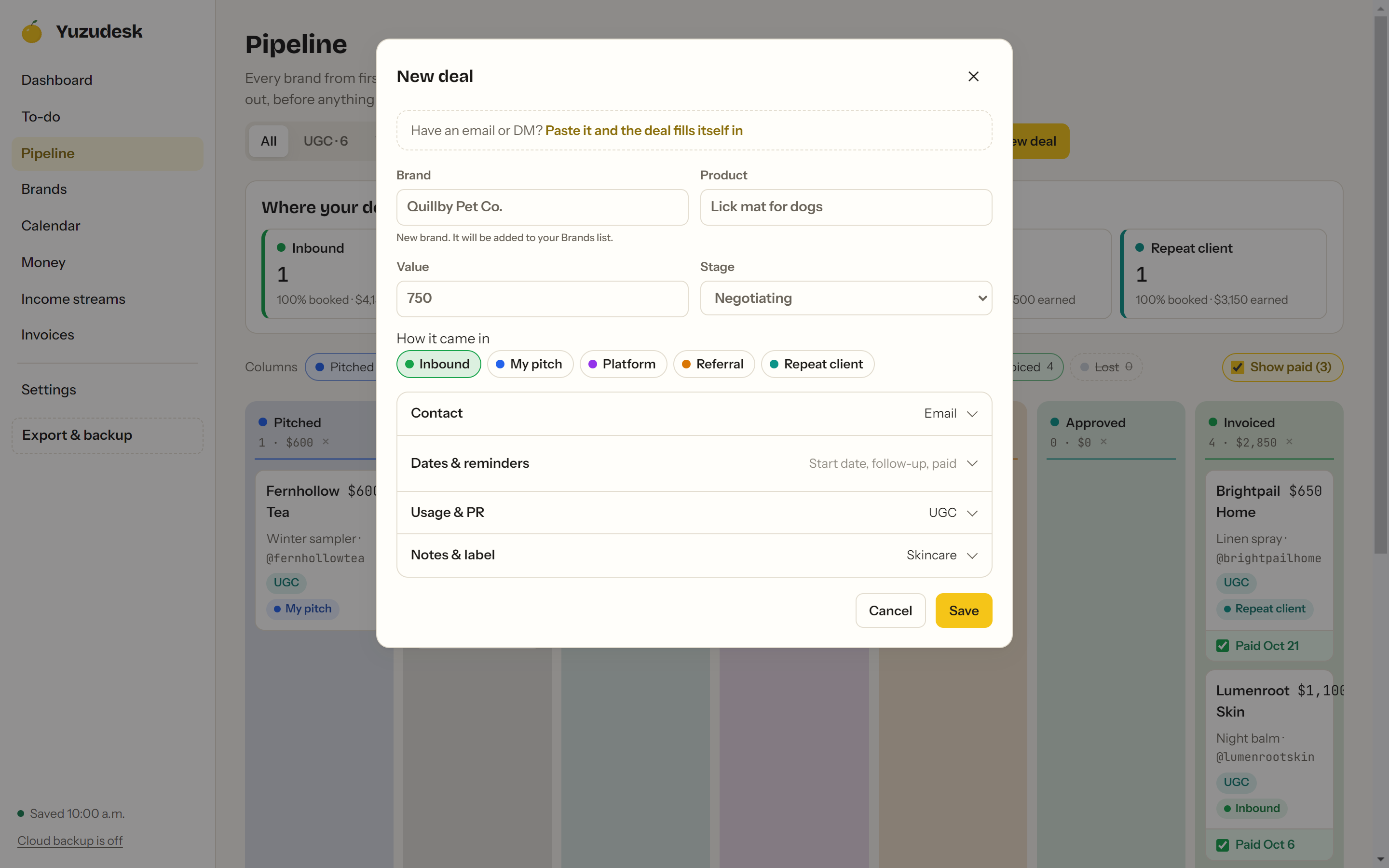
Click Contact to open it, and add the brand's Instagram, the Channel you're talking on (for example Email or Instagram DM), the Contact person's name and their Contact email.
-
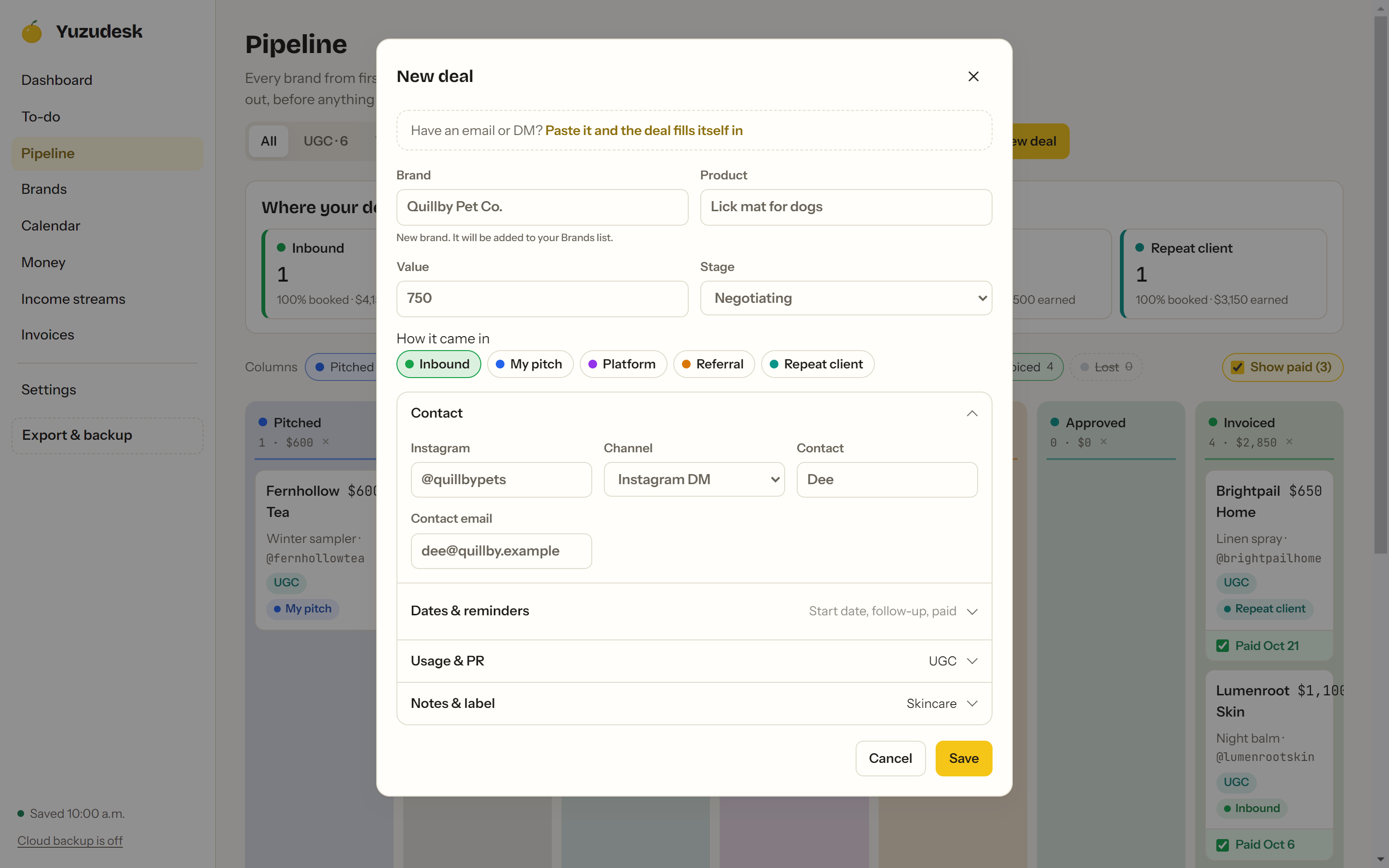
Click Dates & reminders to open it:
- Next follow-up: the day you want to check in.
- Pitched on and Last contact: when you pitched and when you last heard from them.
- Start date: leave it blank. Yuzudesk fills it in when the deal reaches Contracted. Change it only if the contract starts in a different month.
- Under Add to my To-do list, tick Follow-up reminder to get a to-do on your follow-up date.
-
Click Usage & PR to open it:
- Leave both boxes unticked for regular UGC, where you send the content to the brand.
- Tick Whitelisting: posted on or run through my own account if the content runs through your account.
- Tick The brand will run paid ads with it if they're putting ad money behind it.
- Usage rights end: the last day the brand can use the content. Tick Pitch a renewal a week before usage rights end to get a reminder.
- PR / product value: the retail value of any products they send. This is not counted as paid income.
-
Optional: click Notes & label to pick a Category, a Color label for the card, and add Notes (the brief, the angle, anything to remember).
-
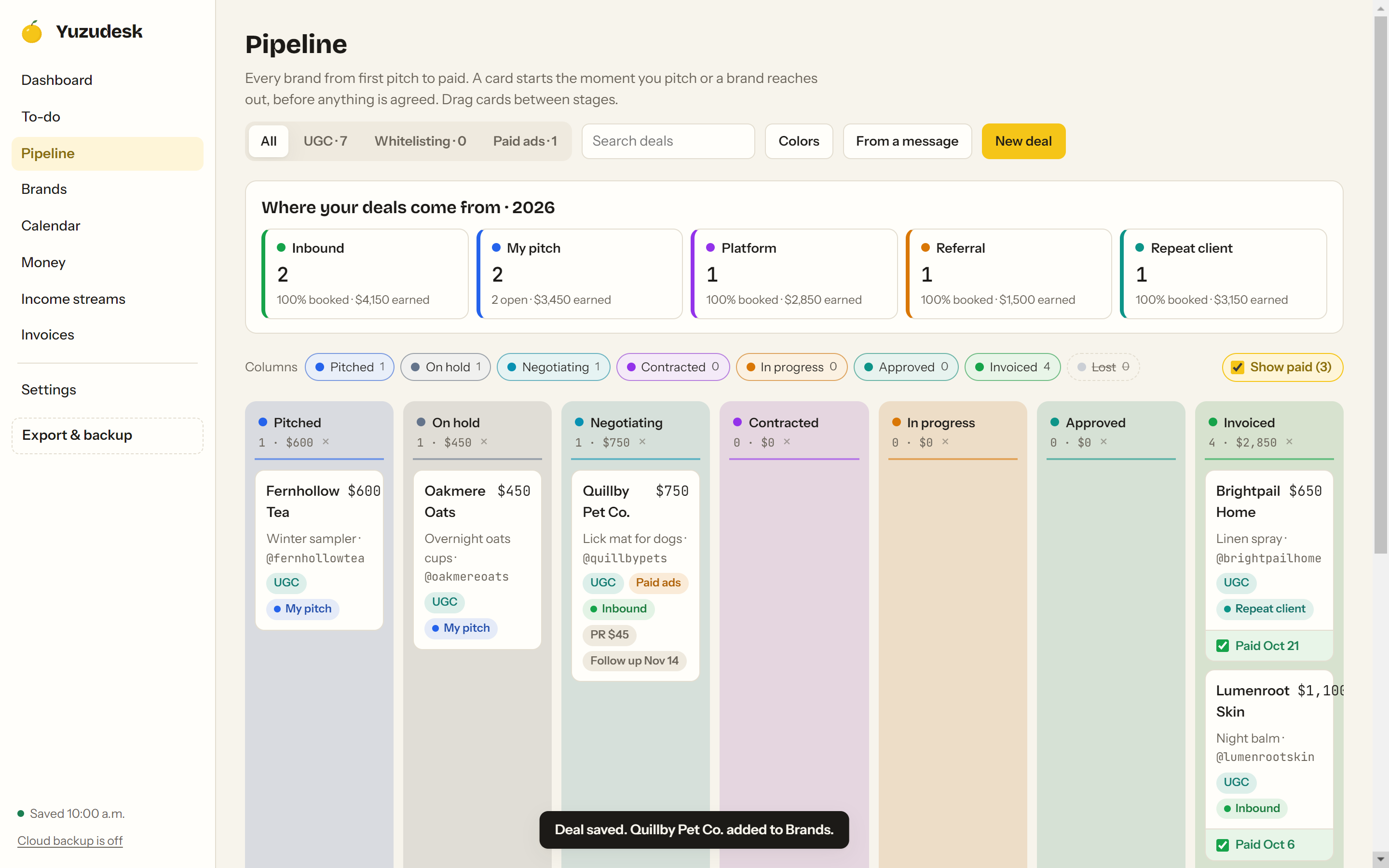
Click Save. If the brand is new, you'll see "Deal saved. [Brand] added to Brands." The deal now shows as a card in its stage column.
-
As the deal moves forward, drag its card to the next stage.
Shortcut: start a deal from the brand's message
On the Pipeline page, click From a message.
Paste the brand's email or DM into the box.
Click Fill in the deal (or press Ctrl + Enter, ⌘ + Enter on a Mac).
Check what Yuzudesk filled in. Highlighted fields came from the message. Fix anything that's off.
-
Click Save. Nothing is saved until you do.
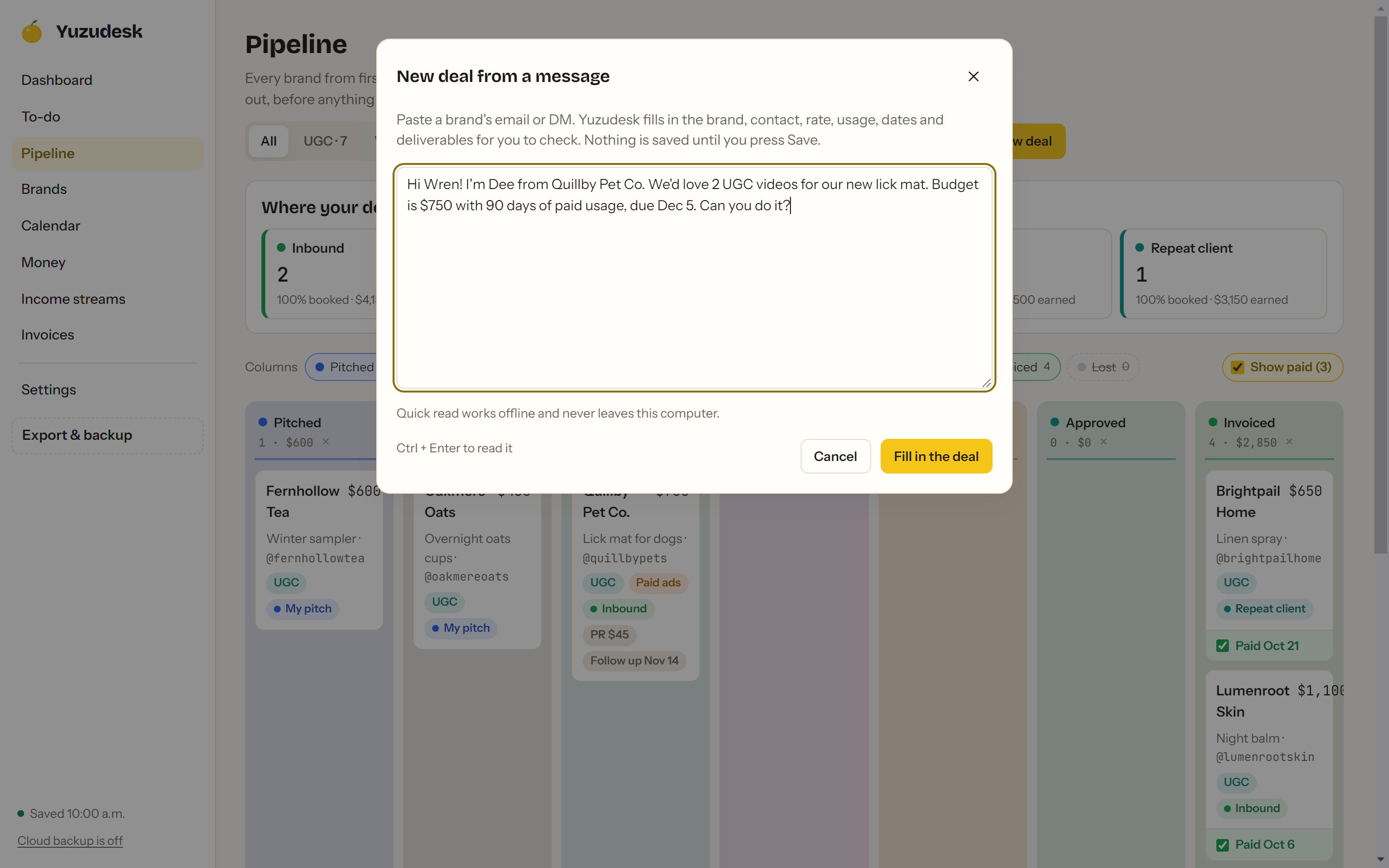
The message is read on your computer. It isn't sent anywhere.
After you save
Open the deal again (click its card) to find these buttons: Log follow-up, + Deliverable, + To-do, + Invoice and + PR. Drop a signed contract onto Contracts & files to keep it with the deal.
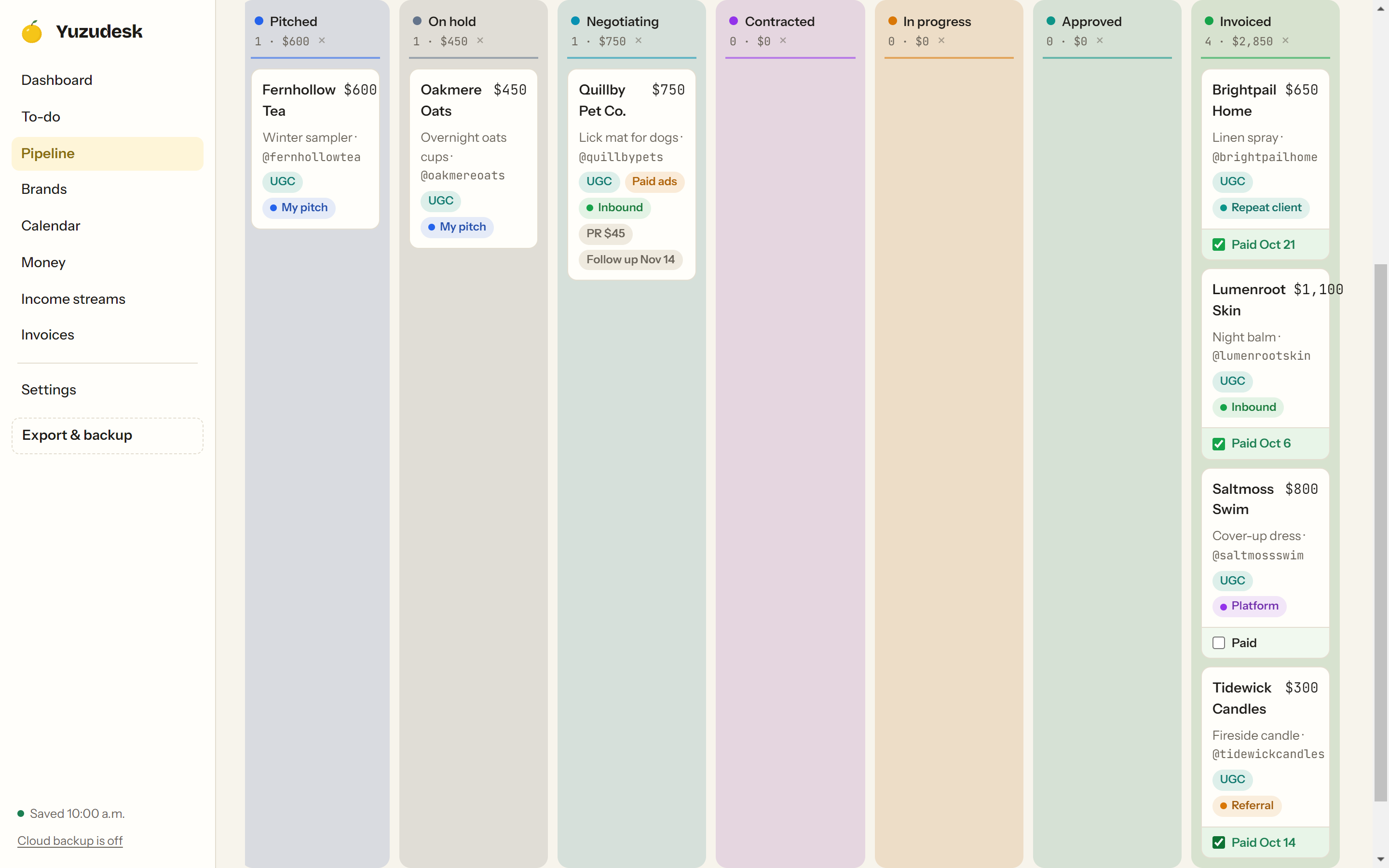
When the money arrives, tick Paid on the card in the Invoiced column, or tick Paid in Dates & reminders. Ticking Paid moves the deal to Invoiced.
Tips
- Add a deal as soon as you pitch or a brand reaches out, before anything is agreed. That way every follow-up is tracked.
- Log follow-up records a follow-up sent today and sets your next reminder 4 days out.
- Deliverables you add with + Deliverable show up on your Calendar with their filming and due dates.
- Hide stages you don't use with the Columns buttons above the board. Click a stage again to show it.